Keyword Chat — TikTok Live Chat overlay
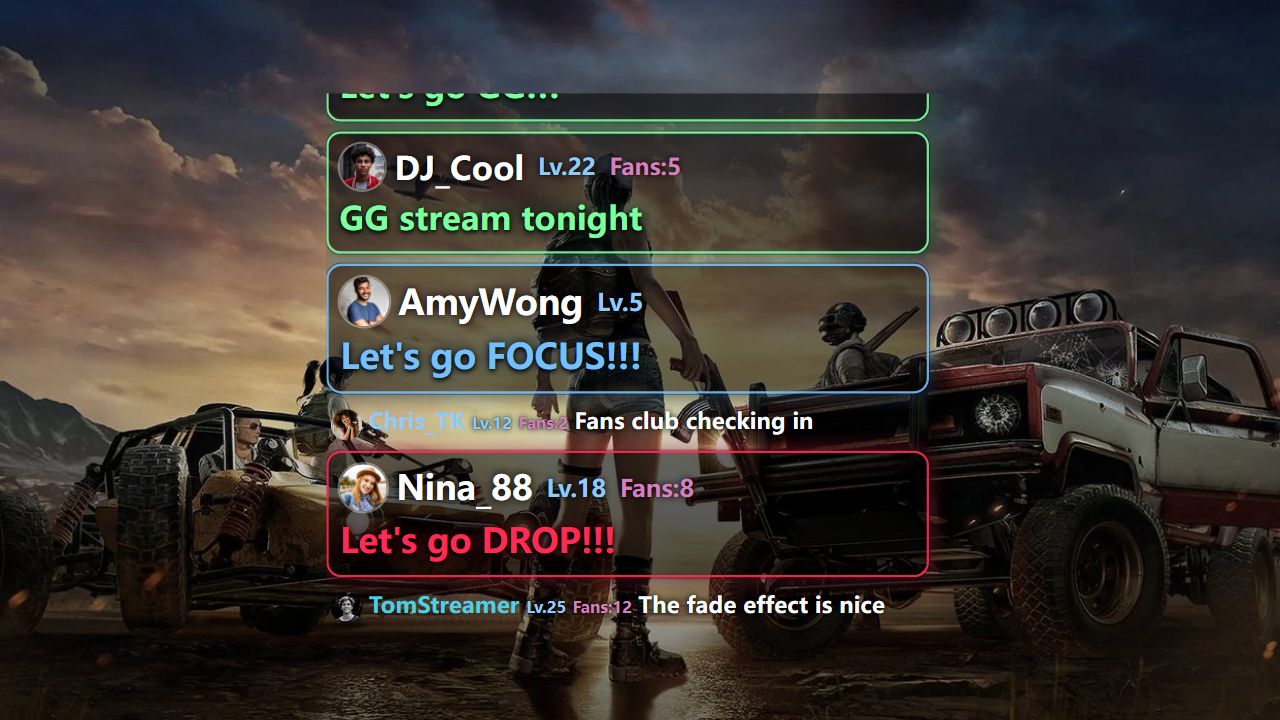
Keyword Chat adds a command amplifier on top of a clean chat overlay: any message hitting your keyword gets wrapped — avatar, nick, and text — in a tinted card and scaled up so it jumps out of the stream.
Prerequisite: install and run TKStudio (Windows desktop) and connect it to the TikTok LIVE room you are streaming. This article stands on its own — from configuration to OBS / TikTok LIVE Studio setup.
When to use it
Keyword giveaways, quiz rounds, or secret-code moments die when correct answers scroll away in two seconds. The boxed card keeps the winner on screen so you can call them out by name. Shopping streams catch 'I want one' / 'ordered!' signals and turn real buyers into social proof.
Run a fan-club passphrase with the fan-level filter so only members' codes get amplified — an instant ritual of belonging.
The demo video above shows Keyword Chat in action (both EN and ZH versions), and the cover previews the layout; the plugin page's live preview is the source of truth.
Configuration
Configure everything on the plugin page in TKStudio — tune on the left, preview live on the right, then hit Generate link. The table below lists every parameter in panel order, its default, and practical gotchas.
| Parameter | Description | Default | Gotchas |
|---|---|---|---|
minUserLevel | Only show events from viewers at or above this TikTok user level. (0–100) | 0 | 0 = no filter. High values silently drop normal viewers — mainly useful for welcome plugins. |
minFansClubLevel | Only react to fan-club members at or above this level. (0–50) | 0 | Fan club level ≠ user level — check your real top fans' levels before raising this. |
onlyFansClubUser | Show fan-club members only. | false | Great for fan-club-only sessions; everyday streams will look empty if enabled. |
showUserLevel | Show the sender's pay-grade badge next to the nickname. | true | Badges feed status competition; turn off for a minimal look. |
showPayGradeName | Show grade name text instead of the badge icon. | false | Pairs with the badge toggle above; both off hides the grade entirely. |
showFansClub | Show the viewer's fan-club level. | true | Highlights loyal fans and encourages joining the club. |
showFansClubName | Also show the fan-club name. | false | Long club names can wrap — check the preview before going live. |
fontSizeLevel | Overall text size step (1–10). (1–10) | 5 | Judge in preview; lower it for vertical (portrait) streams so text stays in frame. |
disappearSec | How long a message stays before fading out. (0–120) | 12 | 0 hides instantly (debug only). Slow-paced shows (chat / teaching) can go 20–30s. |
maxDisplayRows | Max message rows kept on screen. (3–30) | 8 | More rows = more screen. 3–8 is usually plenty; too many will cover gameplay or your face. |
matchCase | Case-sensitive keyword matching. | false | Off catches ok/OK/Ok; on pins down an exact code. |
keywords | Words that trigger the highlighted card treatment. | — | Short keywords over-trigger; use distinctive 4+ char codes. |
filterWords | Messages containing these words are hidden entirely. | — | Substring matching — short words over-match (blocking gun also hits begun). |
How to use it in OBS
This section assumes you have generated and copied the link: open TKStudio → pick Keyword Chat → choose the room and tune parameters → Generate link → Copy link. Keep TKStudio running while you stream — the overlay link talks to the local TKStudio process.
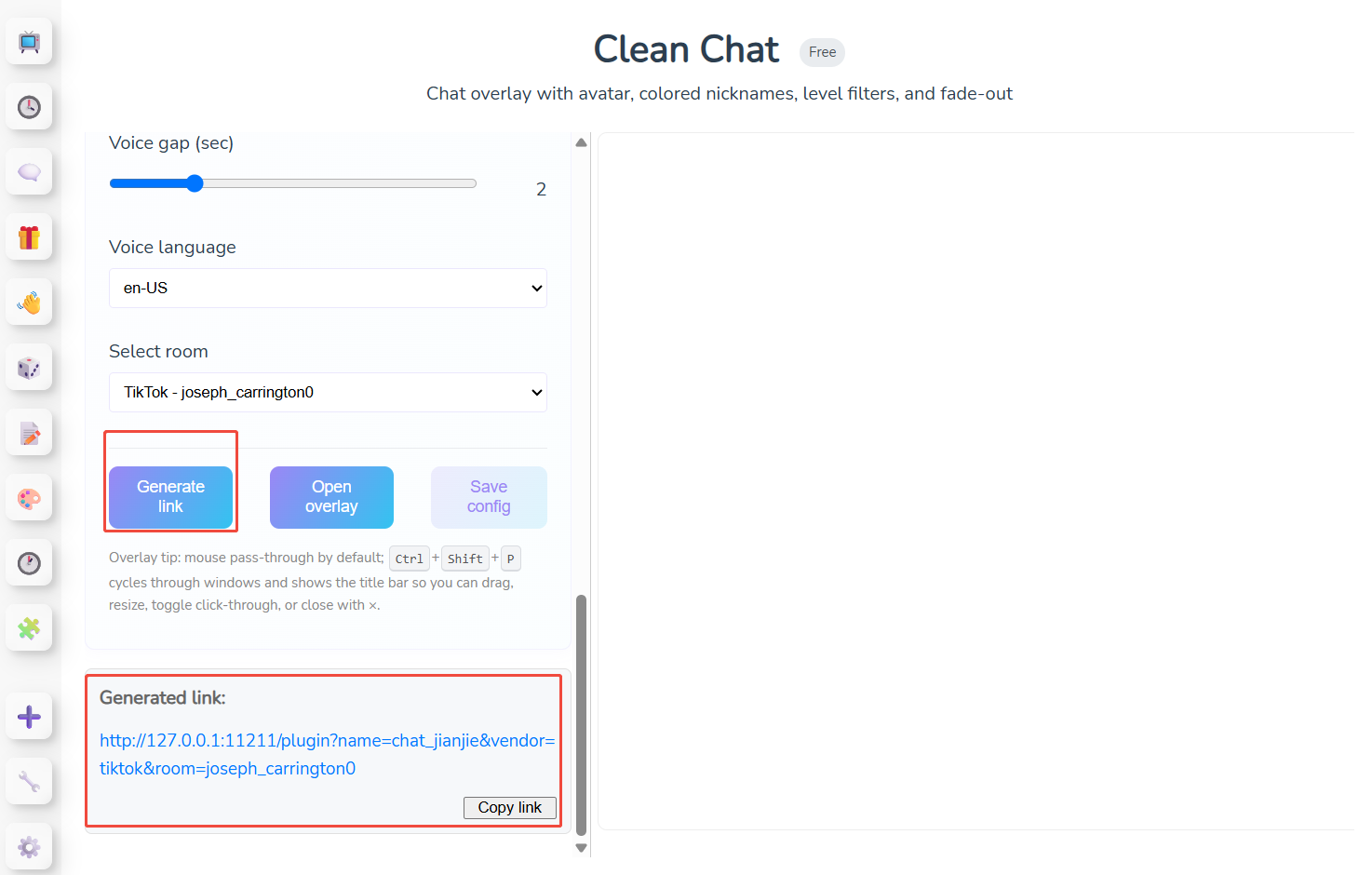
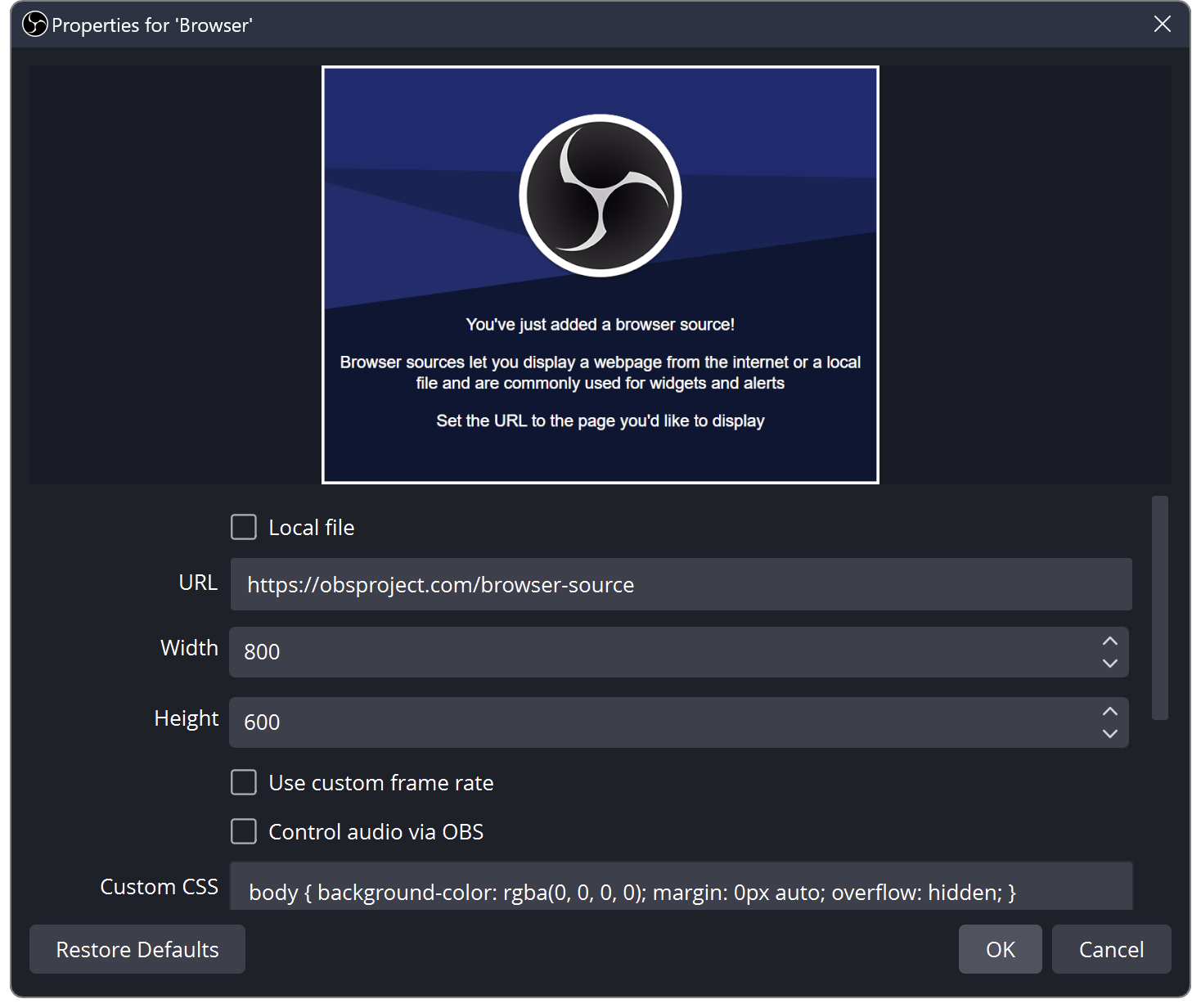
Add the link to OBS as a Browser Source:
- In the Sources dock click + → Browser.
- Paste the copied link into URL; set width / height to your canvas (usually 1920×1080).
- Leave Shutdown source when not visible unchecked so the overlay never pauses.
- Click OK, then drag / resize the source into position.
Placement: Same spot as Clean Chat (left edge); the enlarged card temporarily needs more room, so avoid stacking it under top-bar overlays.
- The page background is transparent out of the box — do not override it with custom CSS.
- After changing parameters, Generate link again and refresh the Browser Source (or update its URL).
- One plugin = one Browser Source; add more sources for more overlays.
How to use it in TikTok LIVE Studio
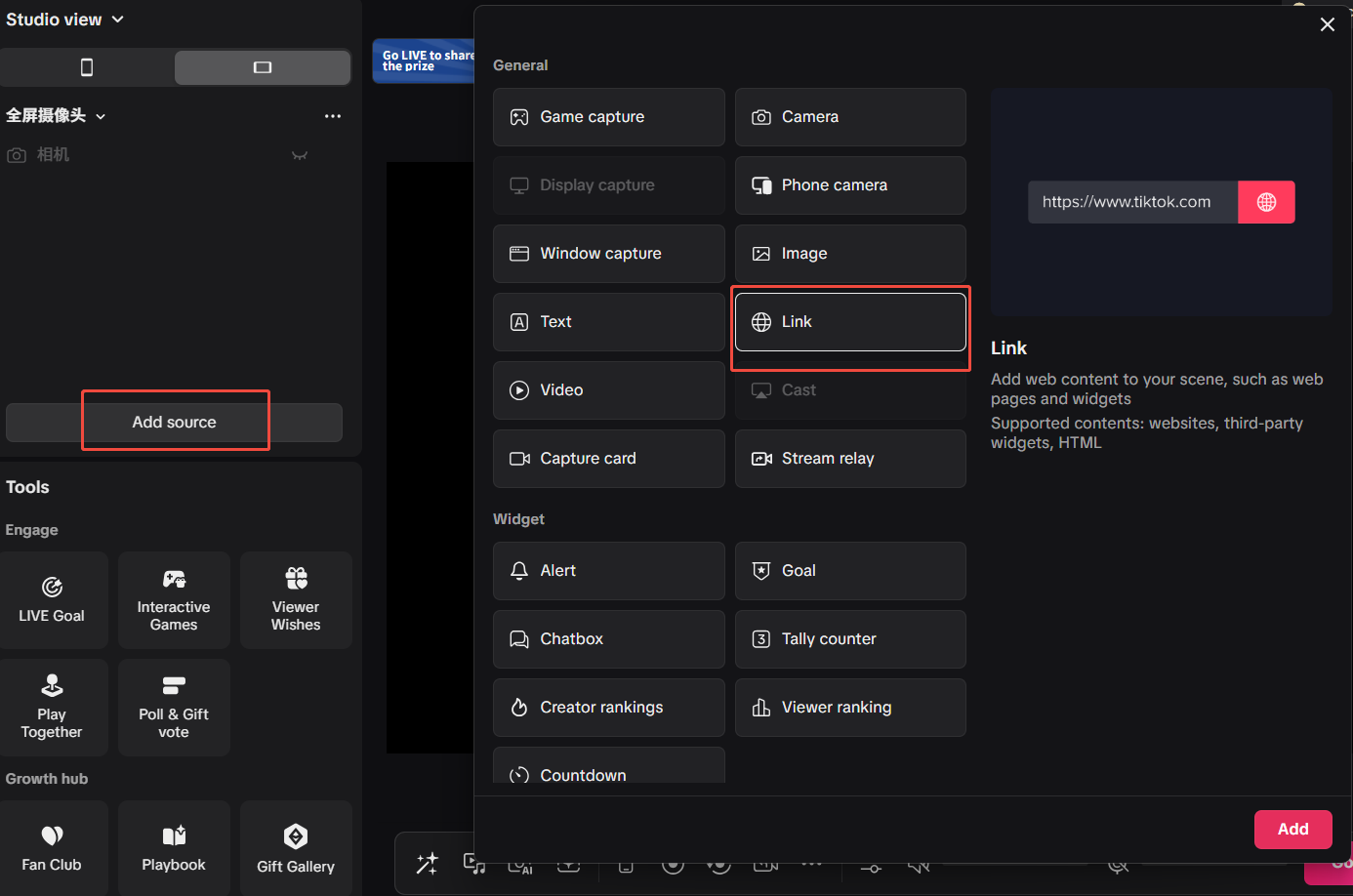
If you go live with TikTok LIVE Studio, the approach is the same — a browser layer, nearly identical to OBS:
- Open your scene / layer list in TikTok LIVE Studio.
- Add a Browser layer.
- Paste the link from Copy link into the URL field.
- Match the canvas size (e.g. 1920×1080) and keep the background transparent.
- Position the layer, go live, and send a test chat / gift to confirm it animates.
- TKStudio and TikTok LIVE Studio must run on the same PC (the link points to 127.0.0.1).
- Blank overlay? Make sure TKStudio is connected to the right room, then re-copy the link and refresh the layer.
- After regenerating a link, refresh or re-create the browser layer.
Related plugins
Browse all plugin docs or try them live in the TKStudio marketplace.