Getting started
Use TKStudio to configure a plugin and generate a local overlay link. Then add that link as a Browser Source — either in OBS or in TikTok LIVE Studio. Pick the section that matches your streaming software.
1. Download and connect
- Download TKStudio from zbmate.com.
- Install, launch, and sign in if prompted.
- Connect the TikTok LIVE room you are streaming so chat / gift events flow into overlays.
2. Open a plugin and generate the link
- Open the plugin marketplace and pick a plugin (for example Clean Chat or Gift Toast).
- Choose the room, tune parameters on the left, and preview on the right.
- Click Generate link.
- Click Copy link — paste this URL into OBS or TikTok LIVE Studio in the next steps.
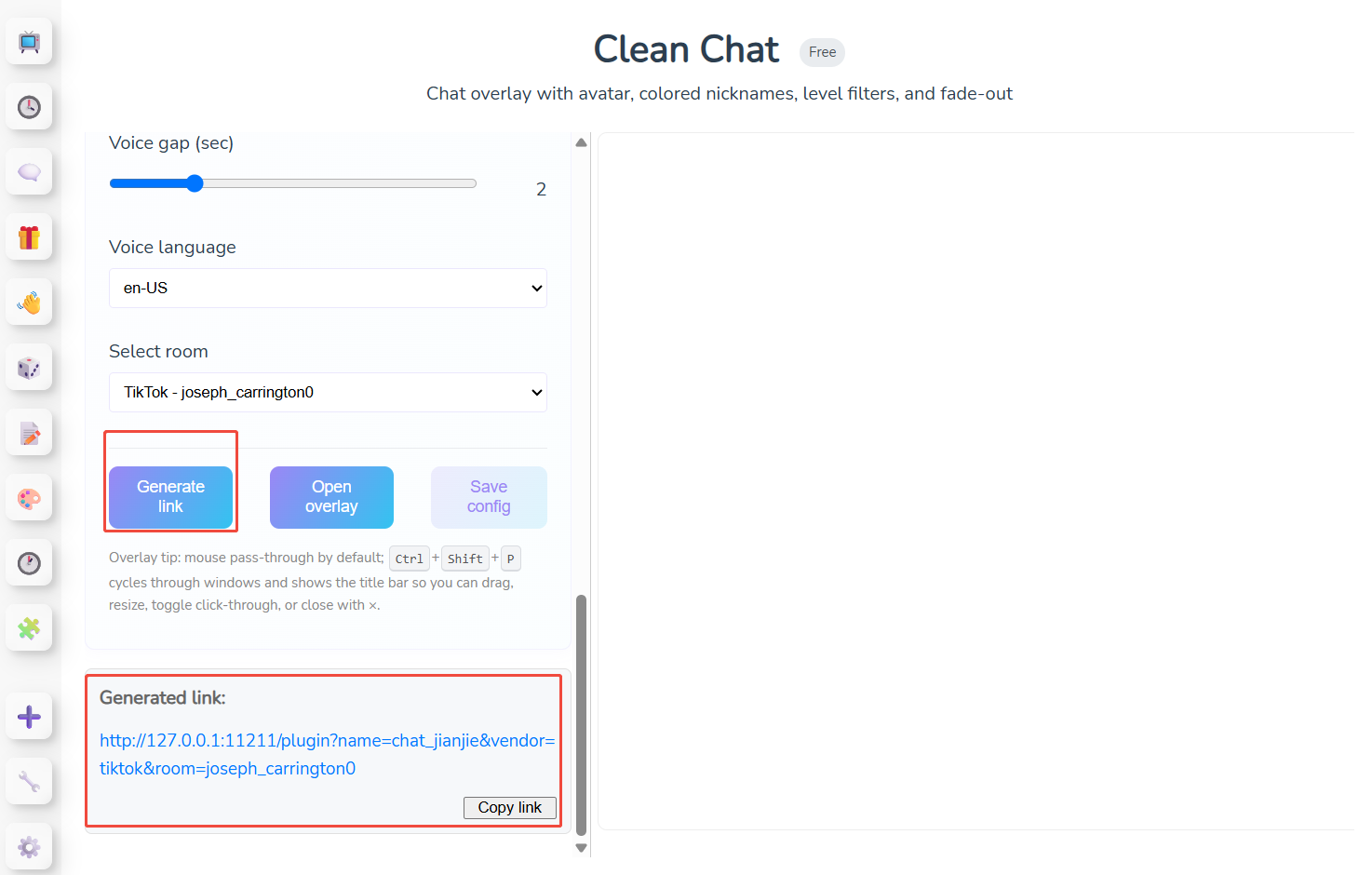
What the buttons mean:
- Generate link — builds a local URL like
http://127.0.0.1:11211/plugin?...that renders the overlay and listens to your room events. - Copy link — copies that URL to the clipboard.
- Open overlay — opens a transparent desktop window (optional; skip if you only use a Browser Source).
- Save config — stores your parameter preset for next time.
Keep TKStudio running while you stream. The link talks to the local TKStudio process.
3. Use the link in OBS
If you stream with OBS Studio, add the copied link as a Browser Source.
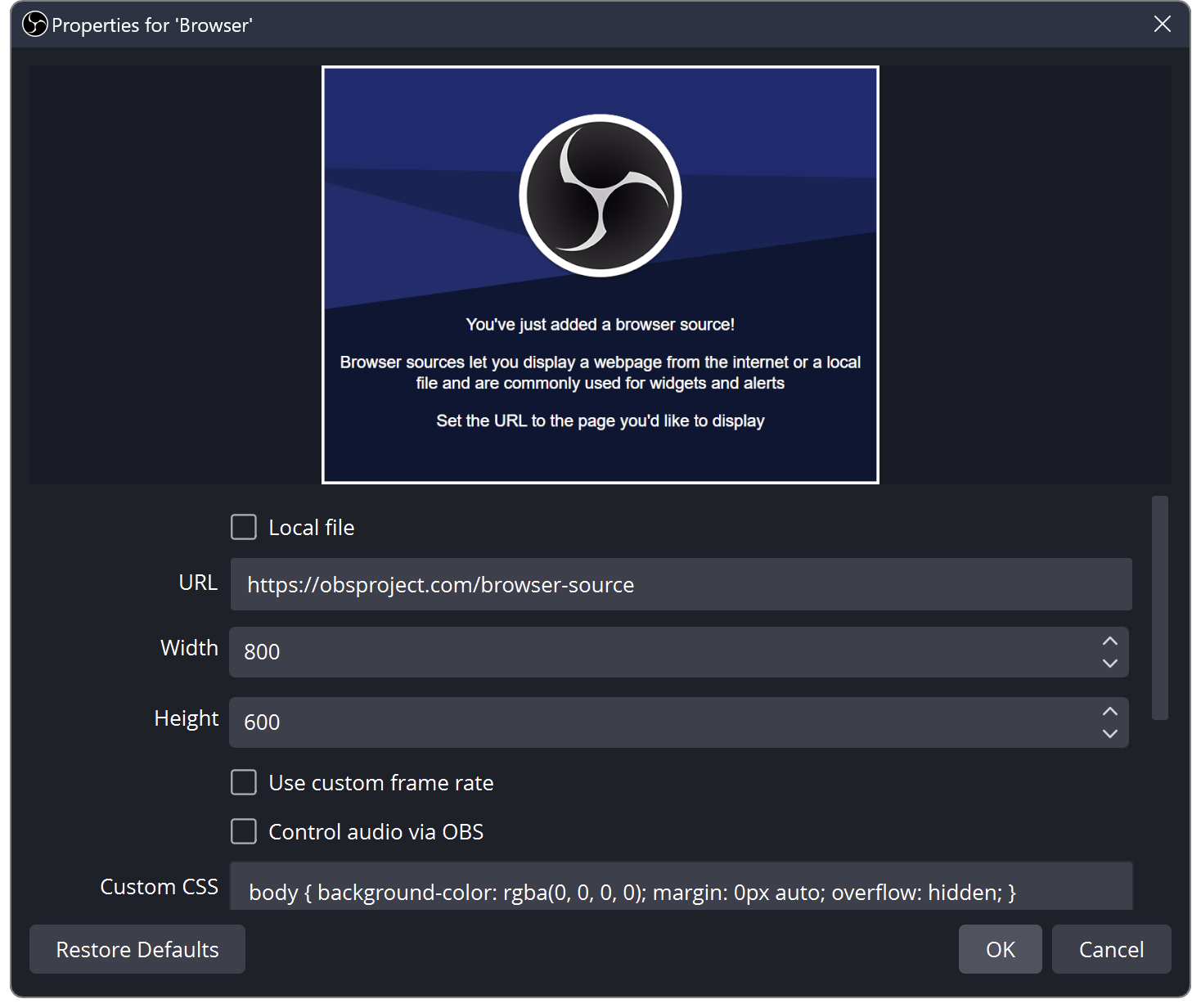
Steps:
- In the Sources dock, click + → Browser.
- Name it (e.g.
ZBMate overlay) → OK. - Paste the link from Copy link into URL.
- Set Width / Height to match your canvas (often
1920×1080). - Enable Shutdown source when not visible only if you understand it will pause the overlay when hidden; leave unchecked if you want it always live.
- Click OK, then drag / resize the source so the overlay sits on the edge — do not cover your face or product.
- Go live (or use Studio Mode preview) and send a test chat / gift to confirm the overlay updates.
OBS tips:
- Use a transparent page background; do not force an opaque CSS background on the source.
- After you change important plugin parameters, Generate link again and update the Browser Source URL (or refresh the source).
- One plugin ≈ one Browser Source. Stack multiple sources if you use several overlays.
4. Use the link in TikTok LIVE Studio
If you stream with TikTok LIVE Studio, add the same link as a Browser source on your scene.
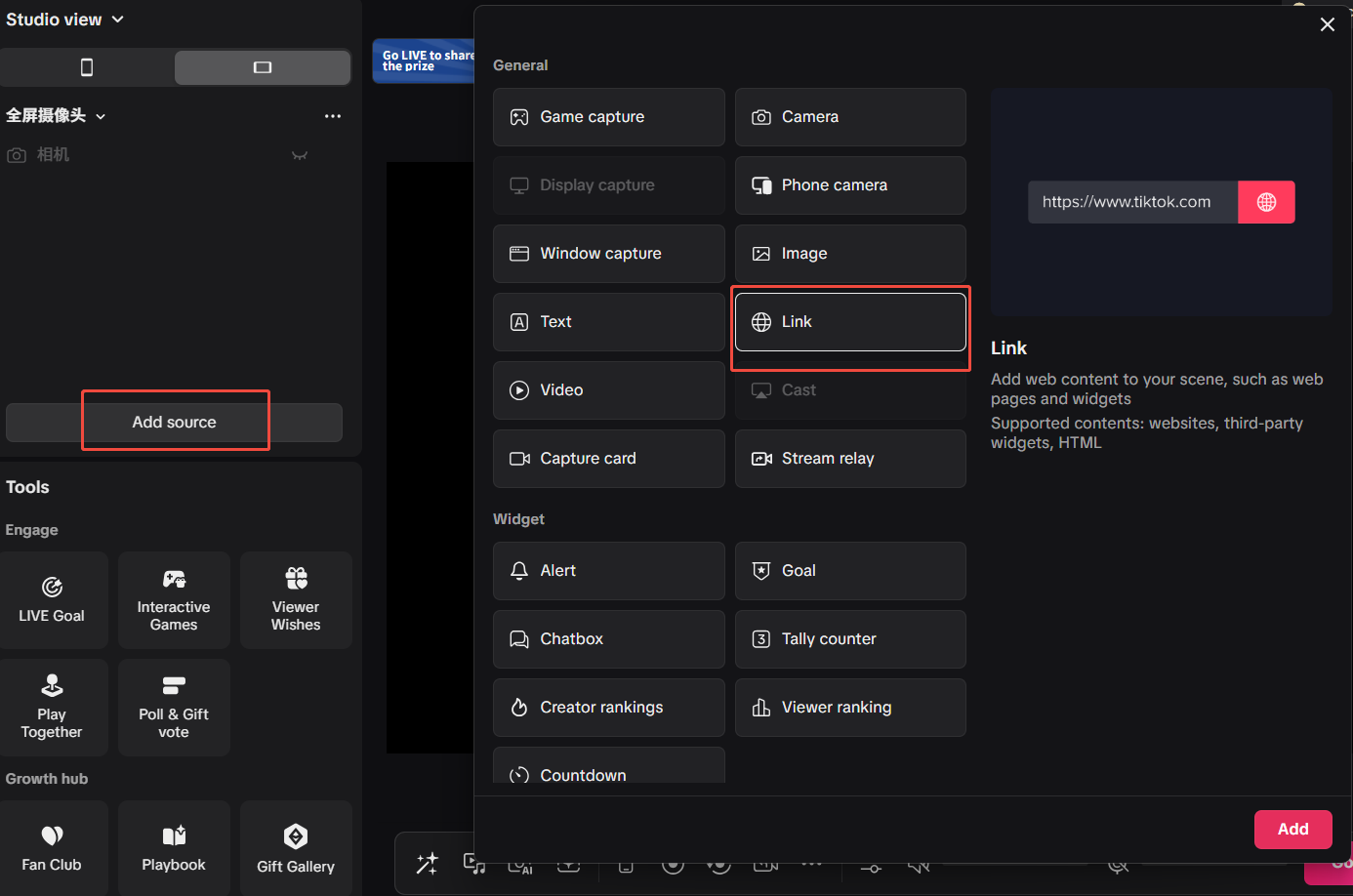
Steps:
- Open your scene / layer list in TikTok LIVE Studio.
- Add a Browser (browser source) layer.
- Paste the link from Copy link into the URL field.
- Set resolution to match the canvas (e.g. 1920×1080) and keep transparency when the option exists.
- Place the layer on the edge of the frame so it does not block your face or product.
- Start the live and send a test chat / gift to confirm the overlay moves.
TikTok LIVE Studio tips:
- TKStudio must stay running on the same PC; TikTok LIVE Studio loads
127.0.0.1locally. - If the overlay is blank, re-copy the link and confirm the room in TKStudio matches the live you are on.
- Refresh or re-add the browser layer after regenerating the link with new parameters.