Gift Thanks — TikTok Live Gifts overlay
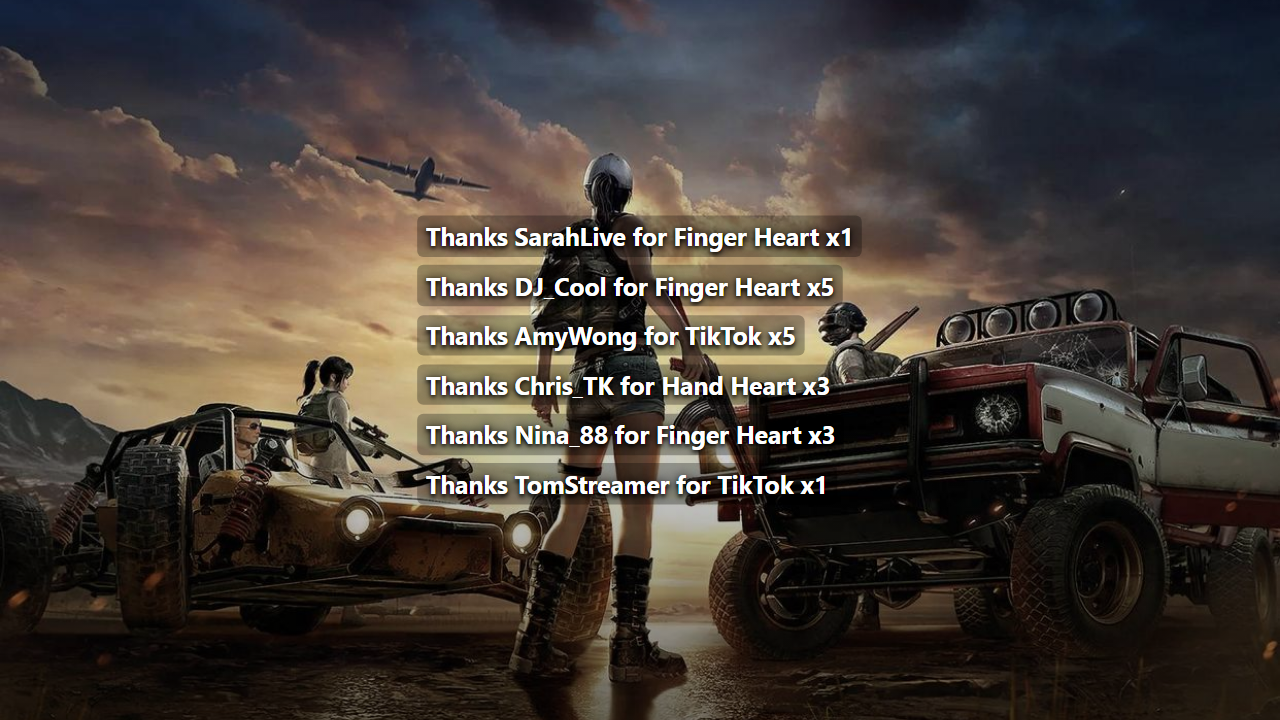
Gift Thanks turns thank-yous into a bottom subtitle queue — lines like 'Thanks {nick} for {gift} x{count}' scroll and fade automatically, like award-show credits.
Prerequisite: install and run TKStudio (Windows desktop) and connect it to the TikTok LIVE room you are streaming. This article stands on its own — from configuration to OBS / TikTok LIVE Studio setup.
When to use it
Singers, ASMR, and talk formats hate being interrupted by thank-yous; the ticker acknowledges gifts automatically while you keep performing. Customize the template with your own catchphrase for an in-joke regulars will love.
Pair it with Gift Feed: the feed shows what happened, the ticker shows you noticed — double the recognition for gifters.
The demo video above shows Gift Thanks in action (both EN and ZH versions), and the cover previews the layout; the plugin page's live preview is the source of truth.
Configuration
Configure everything on the plugin page in TKStudio — tune on the left, preview live on the right, then hit Generate link. The table below lists every parameter in panel order, its default, and practical gotchas.
| Parameter | Description | Default | Gotchas |
|---|---|---|---|
template | Thank-you template; {nick}/{gift}/{count} are replaced. | Thanks {nick} for {gift} x{count} | Keep the placeholders; overly long templates get truncated. |
minGiftPrice | Gifts cheaper than this unit price are ignored. (0–500) | 0 | The best fix for 1-coin gift spam. Too high hides mid-tier gifts and kills feedback. |
maxRows | Visible thank-you lines at once. (1–8) | 4 | Lower it when the queue is busy so it doesn't cover subtitles or product info. |
holdSec | Hold time for a result or message. (1–12, step 0.5) | 4 | Wheels need ≥3s so winners can screenshot the result. |
fontSize | Font size in pixels. (14–40) | 22 | Works together with Scale: set font size first, then scale the whole overlay. |
size | Overall overlay scale (1–10). (1–10) | 5 | You can still resize in OBS / LIVE Studio afterwards; avoid stacking both too small. |
color | Main text / element color. | #ffffff | Avoid pure white over bright scenes (white walls, daylight) — use a brand color. |
How to use it in OBS
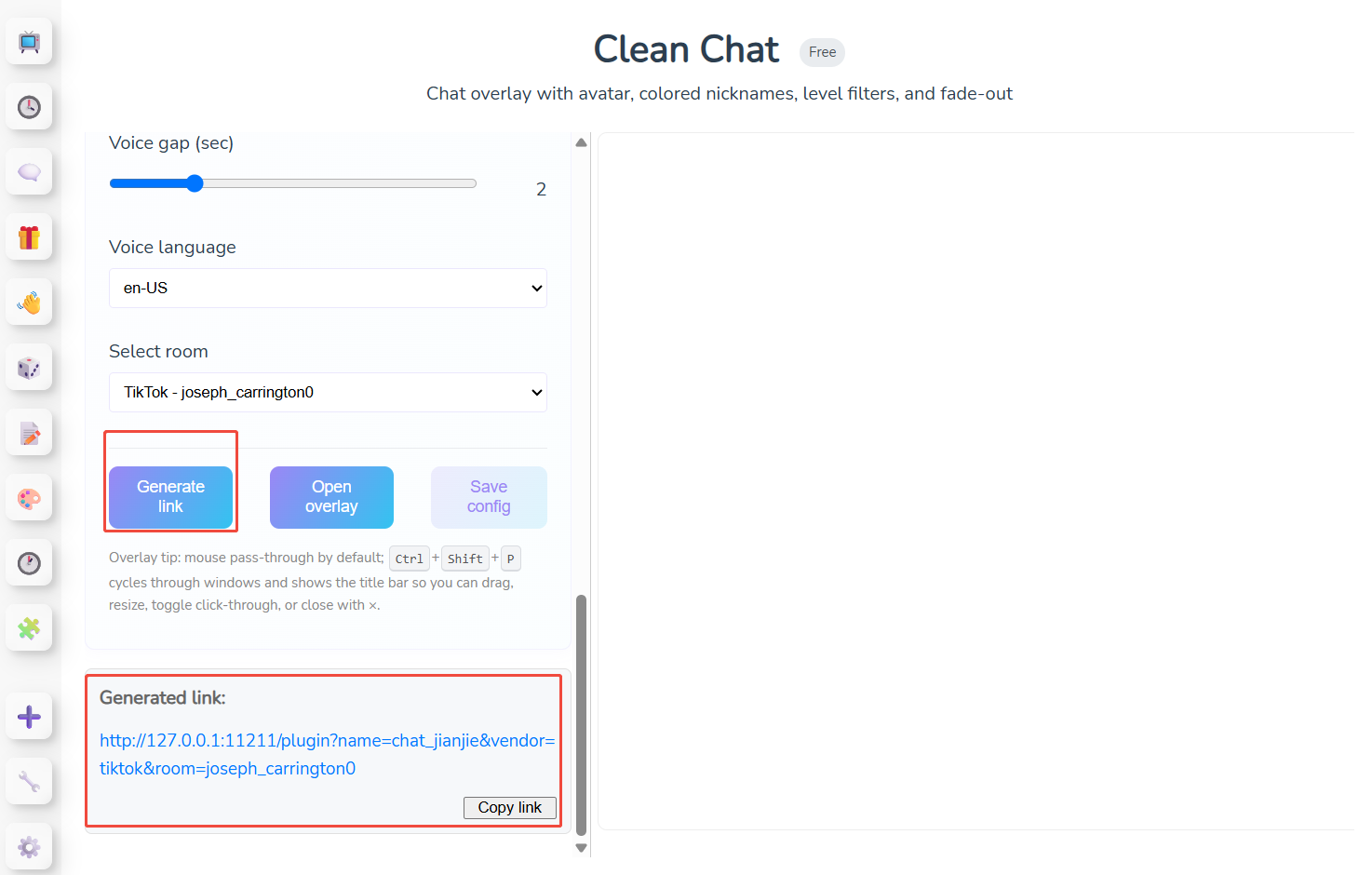
This section assumes you have generated and copied the link: open TKStudio → pick Gift Thanks → choose the room and tune parameters → Generate link → Copy link. Keep TKStudio running while you stream — the overlay link talks to the local TKStudio process.
Add the link to OBS as a Browser Source:
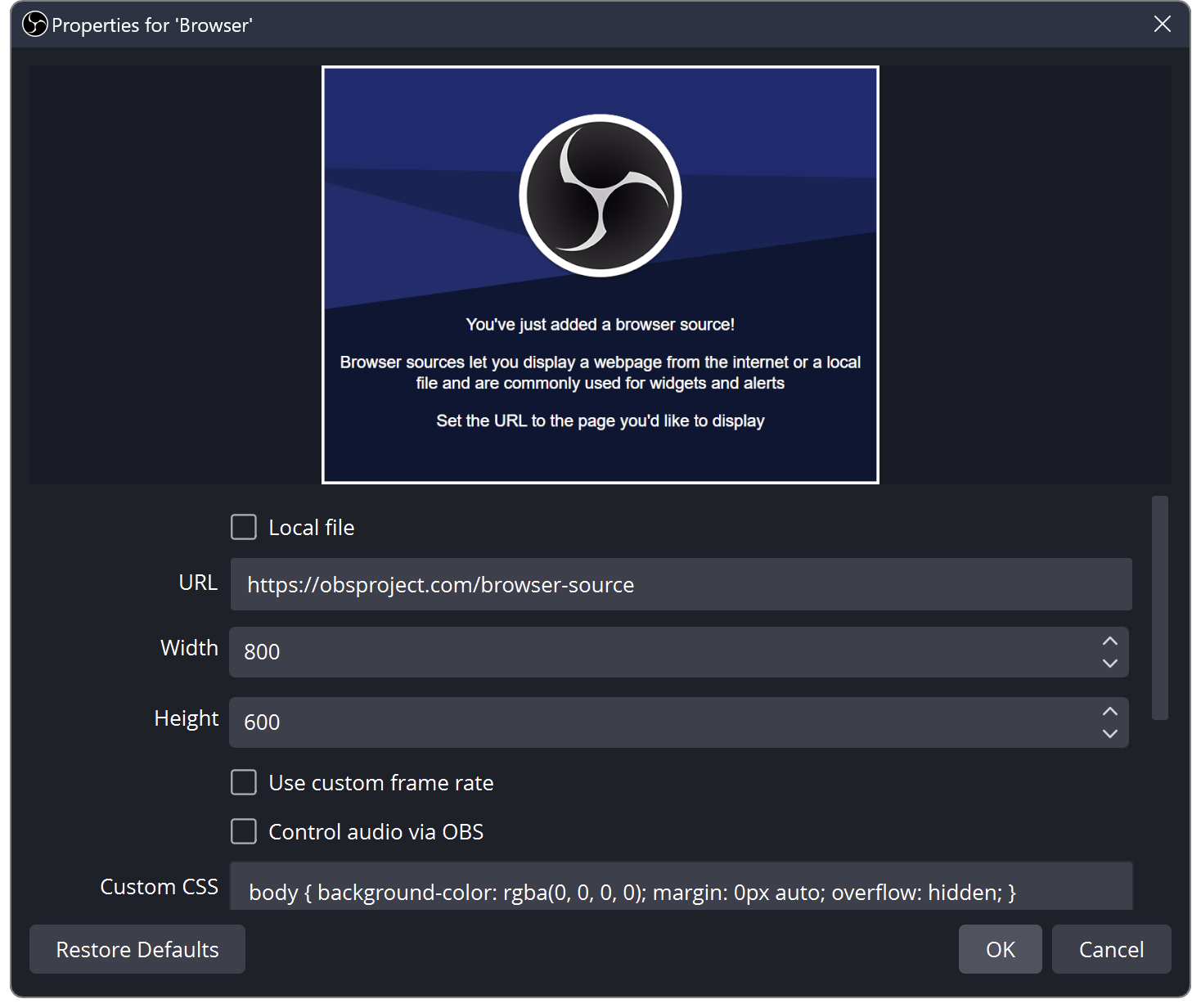
- In the Sources dock click + → Browser.
- Paste the copied link into URL; set width / height to your canvas (usually 1920×1080).
- Leave Shutdown source when not visible unchecked so the overlay never pauses.
- Click OK, then drag / resize the source into position.
Placement: Bottom-center or bottom-left, clear of in-game subtitles; 2–4 visible rows hugging the frame edge is plenty.
- The page background is transparent out of the box — do not override it with custom CSS.
- After changing parameters, Generate link again and refresh the Browser Source (or update its URL).
- One plugin = one Browser Source; add more sources for more overlays.
How to use it in TikTok LIVE Studio
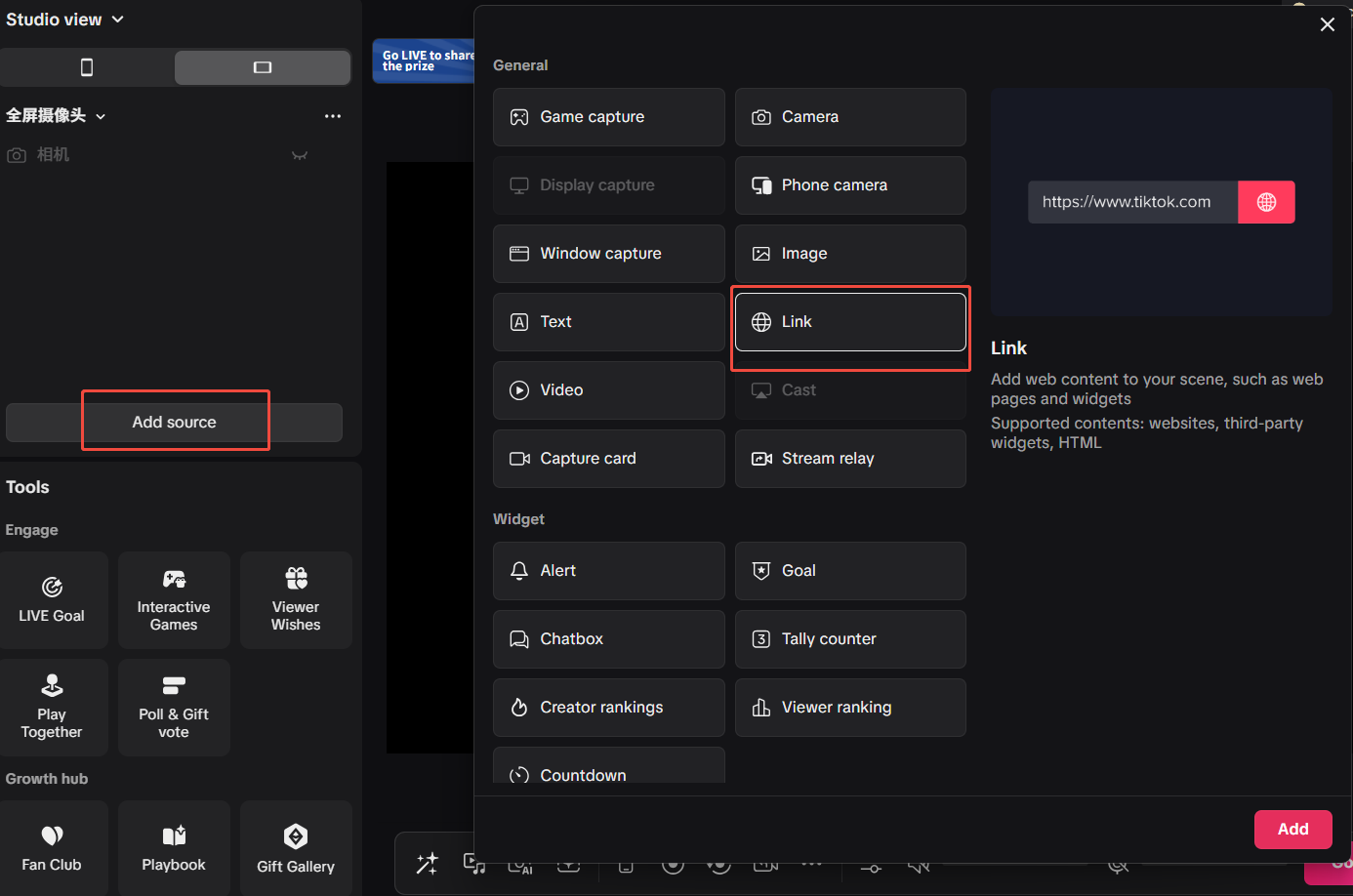
If you go live with TikTok LIVE Studio, the approach is the same — a browser layer, nearly identical to OBS:
- Open your scene / layer list in TikTok LIVE Studio.
- Add a Browser layer.
- Paste the link from Copy link into the URL field.
- Match the canvas size (e.g. 1920×1080) and keep the background transparent.
- Position the layer, go live, and send a test chat / gift to confirm it animates.
- TKStudio and TikTok LIVE Studio must run on the same PC (the link points to 127.0.0.1).
- Blank overlay? Make sure TKStudio is connected to the right room, then re-copy the link and refresh the layer.
- After regenerating a link, refresh or re-create the browser layer.
Related plugins
Browse all plugin docs or try them live in the TKStudio marketplace.