Text Sticker — TikTok Live Text overlay
Text Sticker renders big text with a thick white outline — custom copy, color, tilt, and size. Like a sticker slapped onto your stream, full of personality.
Prerequisite: install and run TKStudio (Windows desktop) and connect it to the TikTok LIVE room you are streaming. This article stands on its own — from configuration to OBS / TikTok LIVE Studio setup.

When to use it
The cheapest branding move: your channel name or slogan as a sticker in a fixed corner appears in every screenshot. Holiday and meme themes are a text-and-color swap away, and the thick outline stays readable over game scenes, greenscreen, and outdoor chaos.
Combine with Stroke and Stack for a complete on-screen text system.
The demo video above shows Text Sticker in action (both EN and ZH versions), and the cover previews the layout; the plugin page's live preview is the source of truth.
Configuration
Configure everything on the plugin page in TKStudio — tune on the left, preview live on the right, then hit Generate link. The table below lists every parameter in panel order, its default, and practical gotchas.
| Parameter | Description | Default | Gotchas |
|---|---|---|---|
text | The text to display. | hello | Long strings wrap or shrink — always check the preview after editing. |
color | Main text / element color. | #872c2c | Avoid pure white over bright scenes (white walls, daylight) — use a brand color. |
direction | Scroll direction or text tilt angle. | 0° | Within ±15° looks playful; beyond that it gets messy. |
fontSize | Font size in pixels. (24–96) | 48 | Works together with Scale: set font size first, then scale the whole overlay. |
size | Overall overlay scale (1–10). (1–10) | 5 | You can still resize in OBS / LIVE Studio afterwards; avoid stacking both too small. |
How to use it in OBS
This section assumes you have generated and copied the link: open TKStudio → pick Text Sticker → choose the room and tune parameters → Generate link → Copy link. Keep TKStudio running while you stream — the overlay link talks to the local TKStudio process.
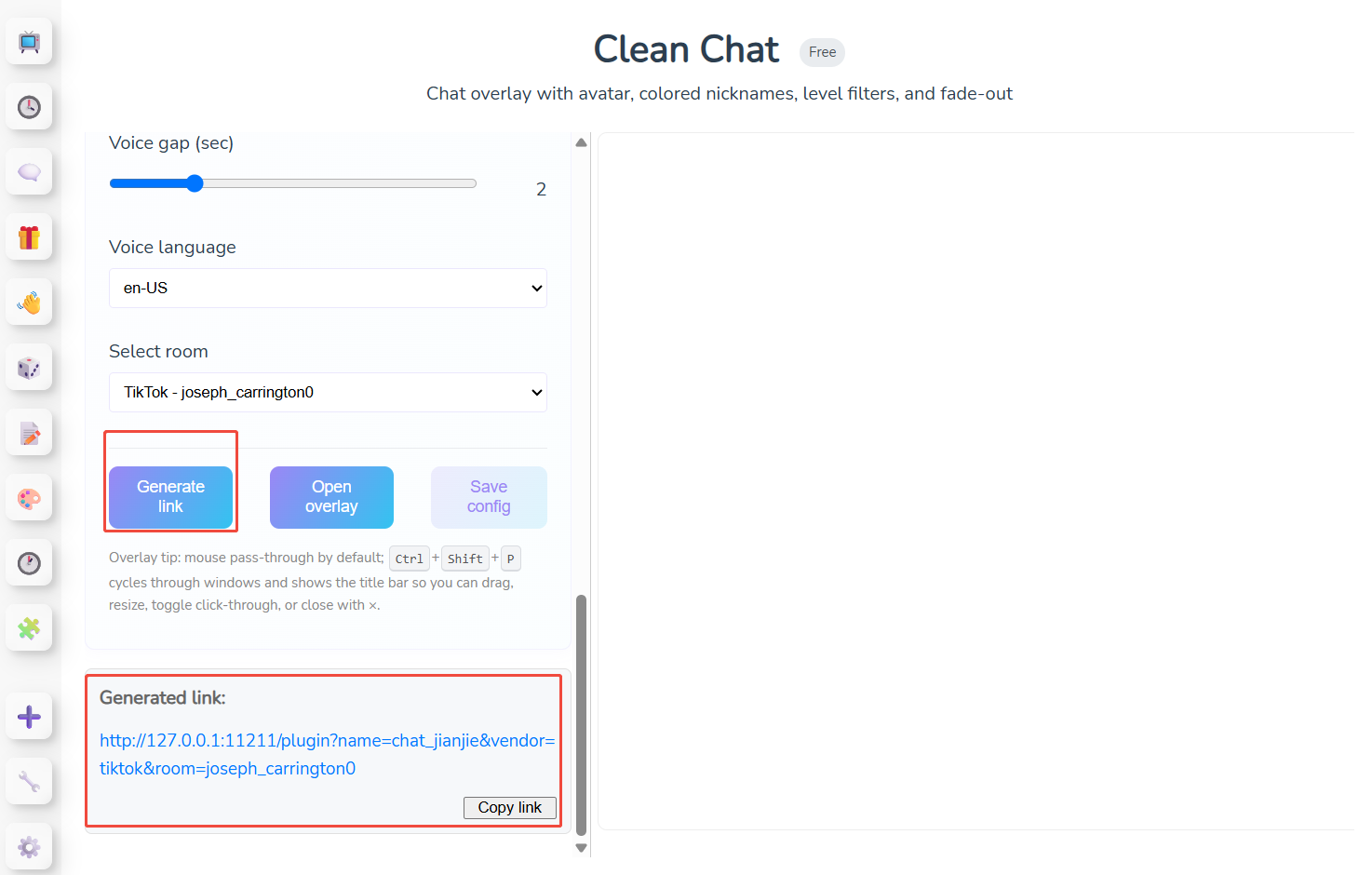
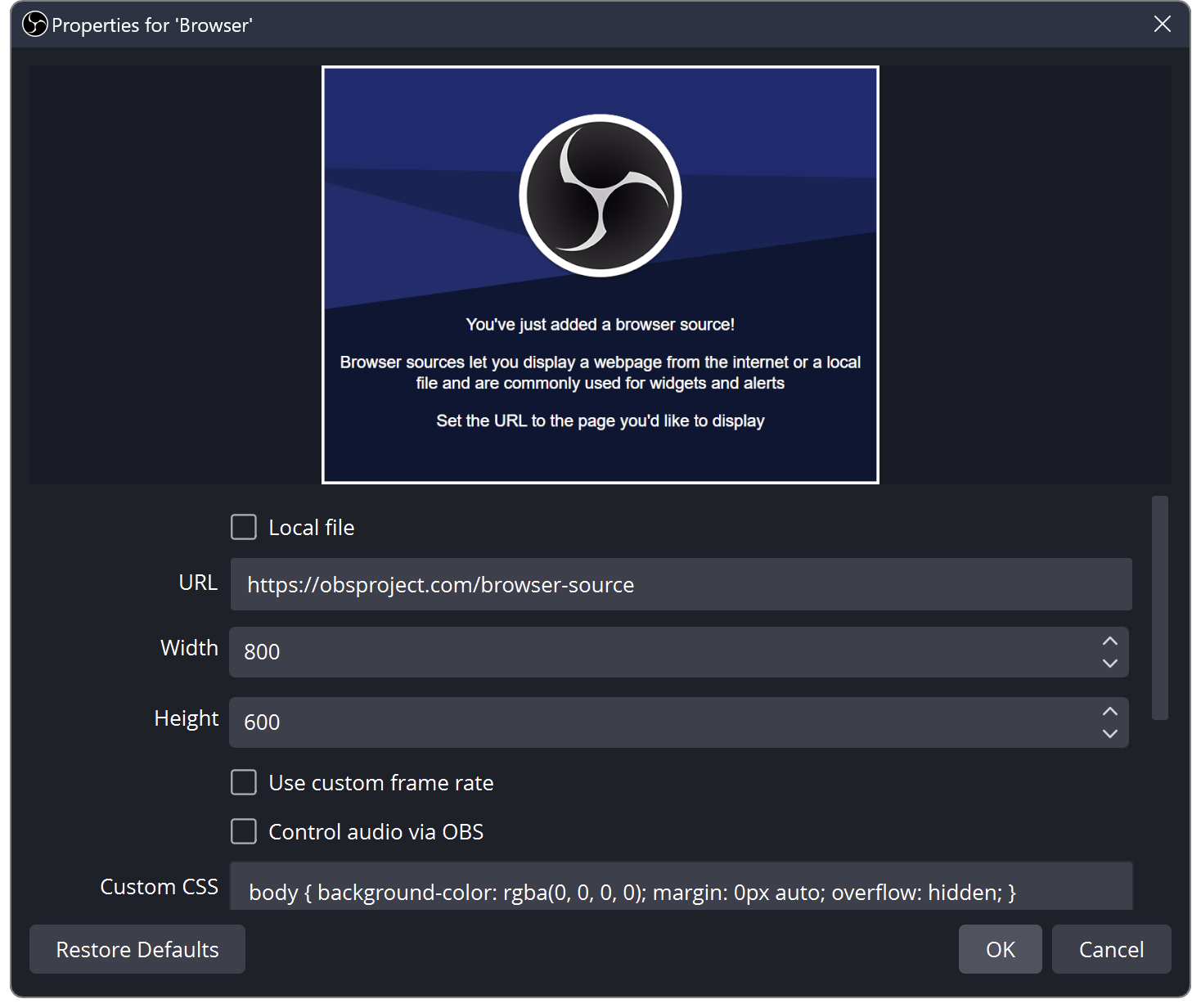
Add the link to OBS as a Browser Source:
- In the Sources dock click + → Browser.
- Paste the copied link into URL; set width / height to your canvas (usually 1920×1080).
- Leave Shutdown source when not visible unchecked so the overlay never pauses.
- Click OK, then drag / resize the source into position.
Placement: Stickers belong in corners; 8–15° tilt reads most natural — keep clear of faces and key HUD.
- The page background is transparent out of the box — do not override it with custom CSS.
- After changing parameters, Generate link again and refresh the Browser Source (or update its URL).
- One plugin = one Browser Source; add more sources for more overlays.
How to use it in TikTok LIVE Studio
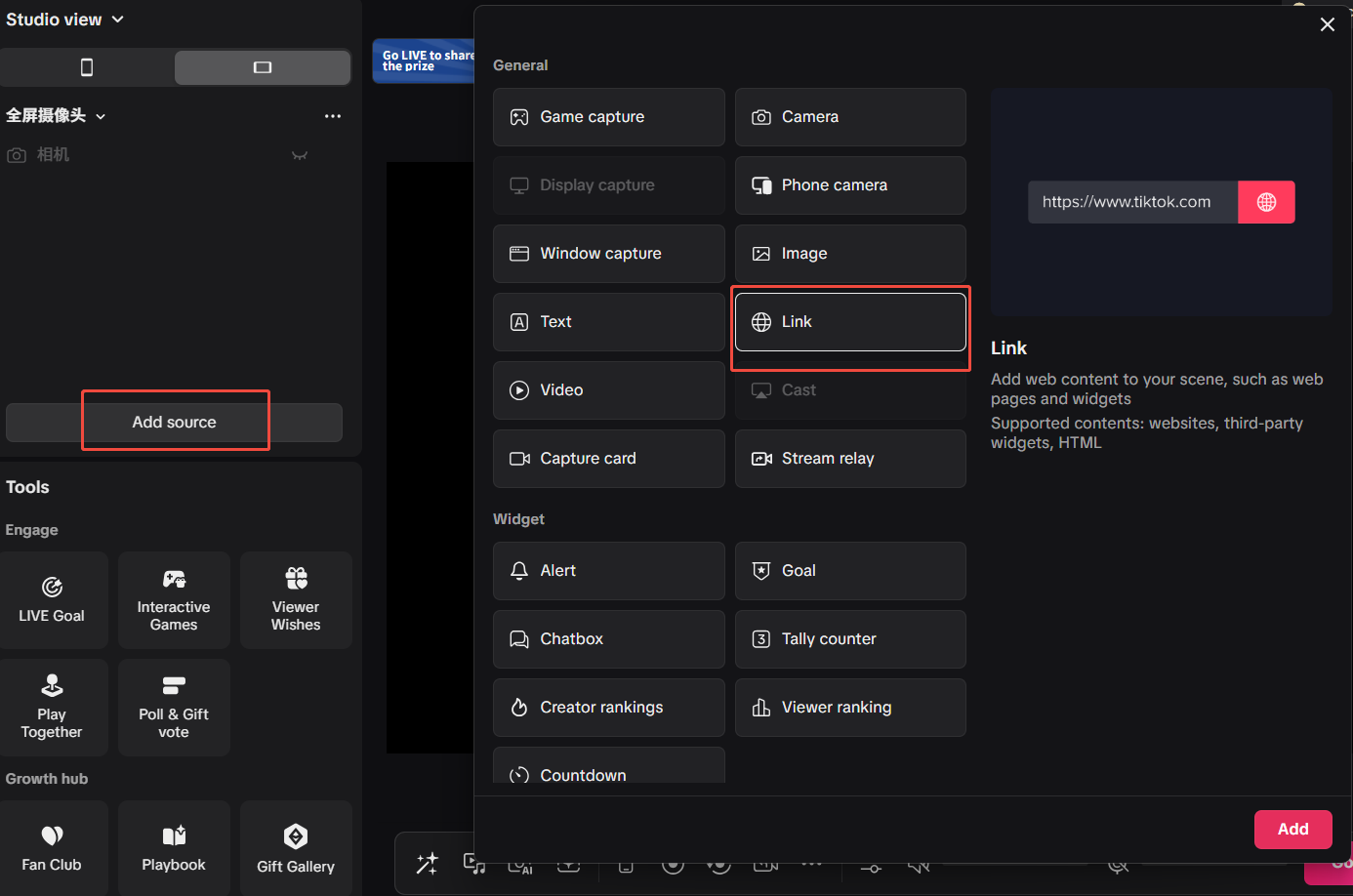
If you go live with TikTok LIVE Studio, the approach is the same — a browser layer, nearly identical to OBS:
- Open your scene / layer list in TikTok LIVE Studio.
- Add a Browser layer.
- Paste the link from Copy link into the URL field.
- Match the canvas size (e.g. 1920×1080) and keep the background transparent.
- Position the layer, go live, and send a test chat / gift to confirm it animates.
- TKStudio and TikTok LIVE Studio must run on the same PC (the link points to 127.0.0.1).
- Blank overlay? Make sure TKStudio is connected to the right room, then re-copy the link and refresh the layer.
- After regenerating a link, refresh or re-create the browser layer.
Related plugins
Browse all plugin docs or try them live in the TKStudio marketplace.