Text Stroke — TikTok Live Text overlay
Text Stroke renders filled letters with an offset black outline and a soft drop copy — maximum contrast for titles, slogans, and anything that must read from across the room.
Prerequisite: install and run TKStudio (Windows desktop) and connect it to the TikTok LIVE room you are streaming. This article stands on its own — from configuration to OBS / TikTok LIVE Studio setup.

When to use it
On TVs and big screens, thin fonts smear — stroke outlines stay sharp at any resolution. Use it for event titles, segment names, and countdown captions so they read even in tiny floating windows. Light fill + black stroke is foolproof high contrast, no design skill required.
Pair with Sticker text as subheadings for instant hierarchy.
The demo video above shows Text Stroke in action (both EN and ZH versions), and the cover previews the layout; the plugin page's live preview is the source of truth.
Configuration
Configure everything on the plugin page in TKStudio — tune on the left, preview live on the right, then hit Generate link. The table below lists every parameter in panel order, its default, and practical gotchas.
| Parameter | Description | Default | Gotchas |
|---|---|---|---|
text | The text to display. | — | Long strings wrap or shrink — always check the preview after editing. |
color | Main text / element color. | #b0c4de | Avoid pure white over bright scenes (white walls, daylight) — use a brand color. |
fontSize | Font size in pixels. (20–120) | 48 | Works together with Scale: set font size first, then scale the whole overlay. |
size | Overall overlay scale (1–10). (1–10) | 5 | You can still resize in OBS / LIVE Studio afterwards; avoid stacking both too small. |
How to use it in OBS
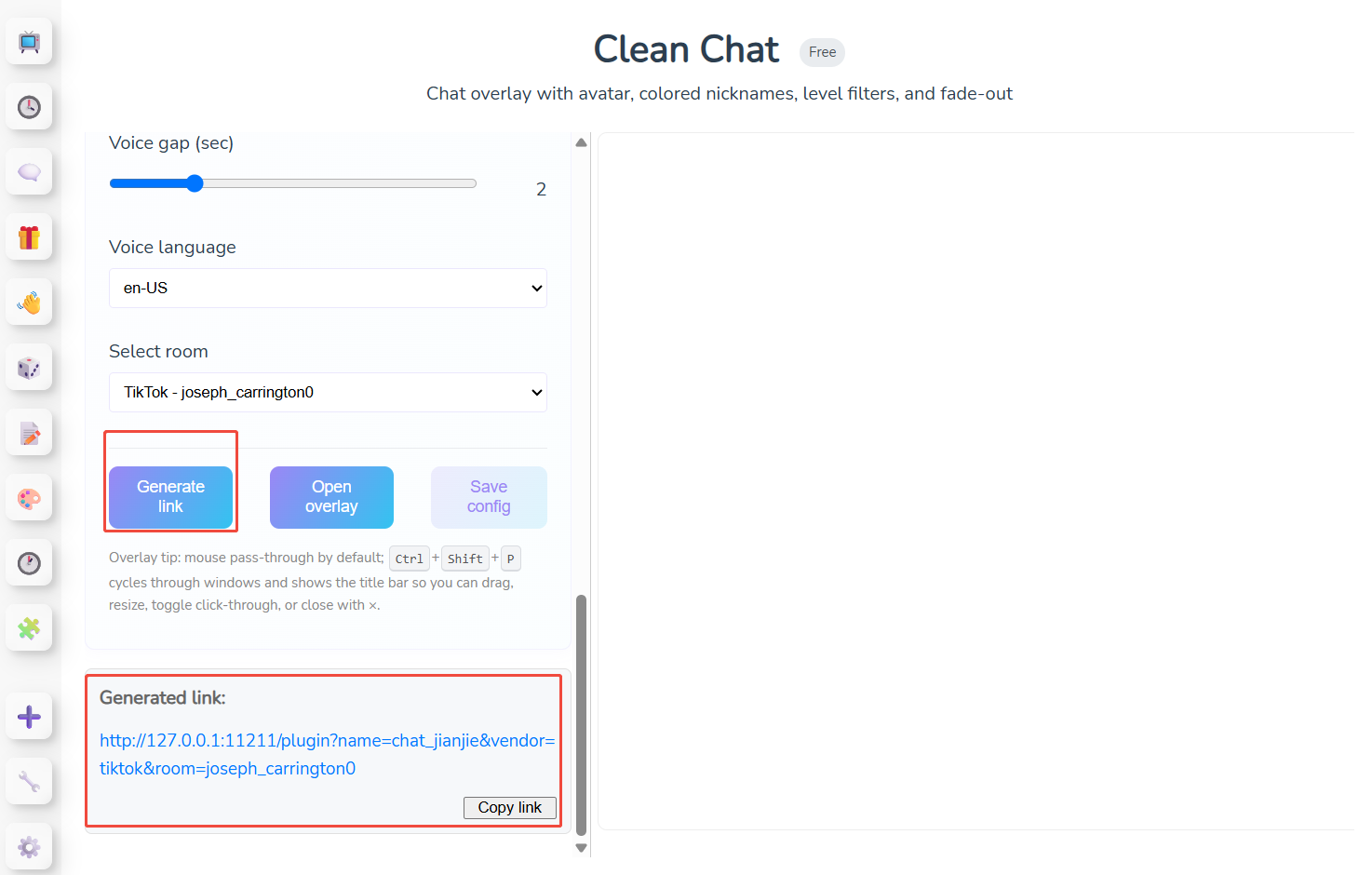
This section assumes you have generated and copied the link: open TKStudio → pick Text Stroke → choose the room and tune parameters → Generate link → Copy link. Keep TKStudio running while you stream — the overlay link talks to the local TKStudio process.
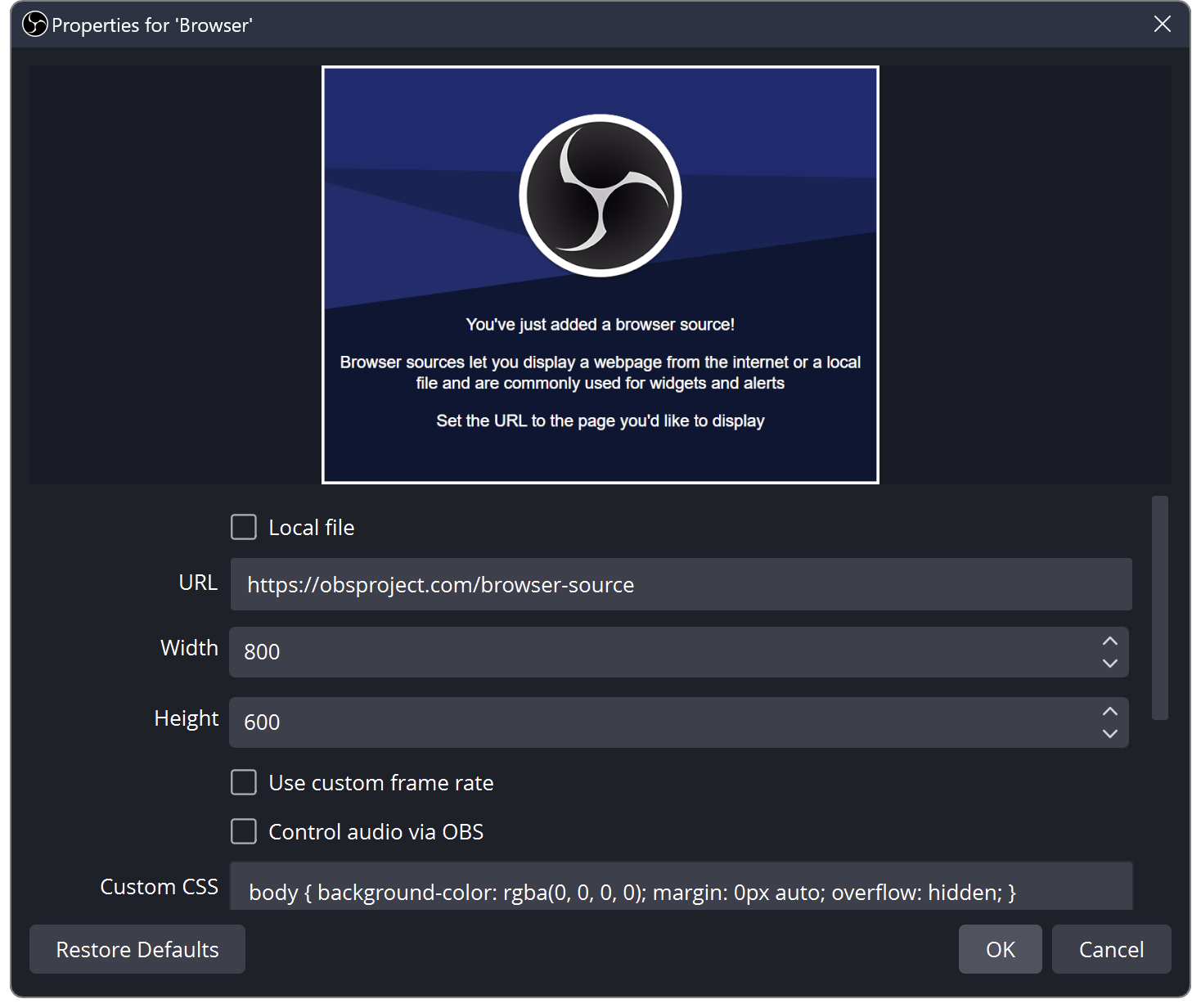
Add the link to OBS as a Browser Source:
- In the Sources dock click + → Browser.
- Paste the copied link into URL; set width / height to your canvas (usually 1920×1080).
- Leave Shutdown source when not visible unchecked so the overlay never pauses.
- Click OK, then drag / resize the source into position.
Placement: Title spots (top-center or big corner type); choose fill colors far from the background's brightness.
- The page background is transparent out of the box — do not override it with custom CSS.
- After changing parameters, Generate link again and refresh the Browser Source (or update its URL).
- One plugin = one Browser Source; add more sources for more overlays.
How to use it in TikTok LIVE Studio
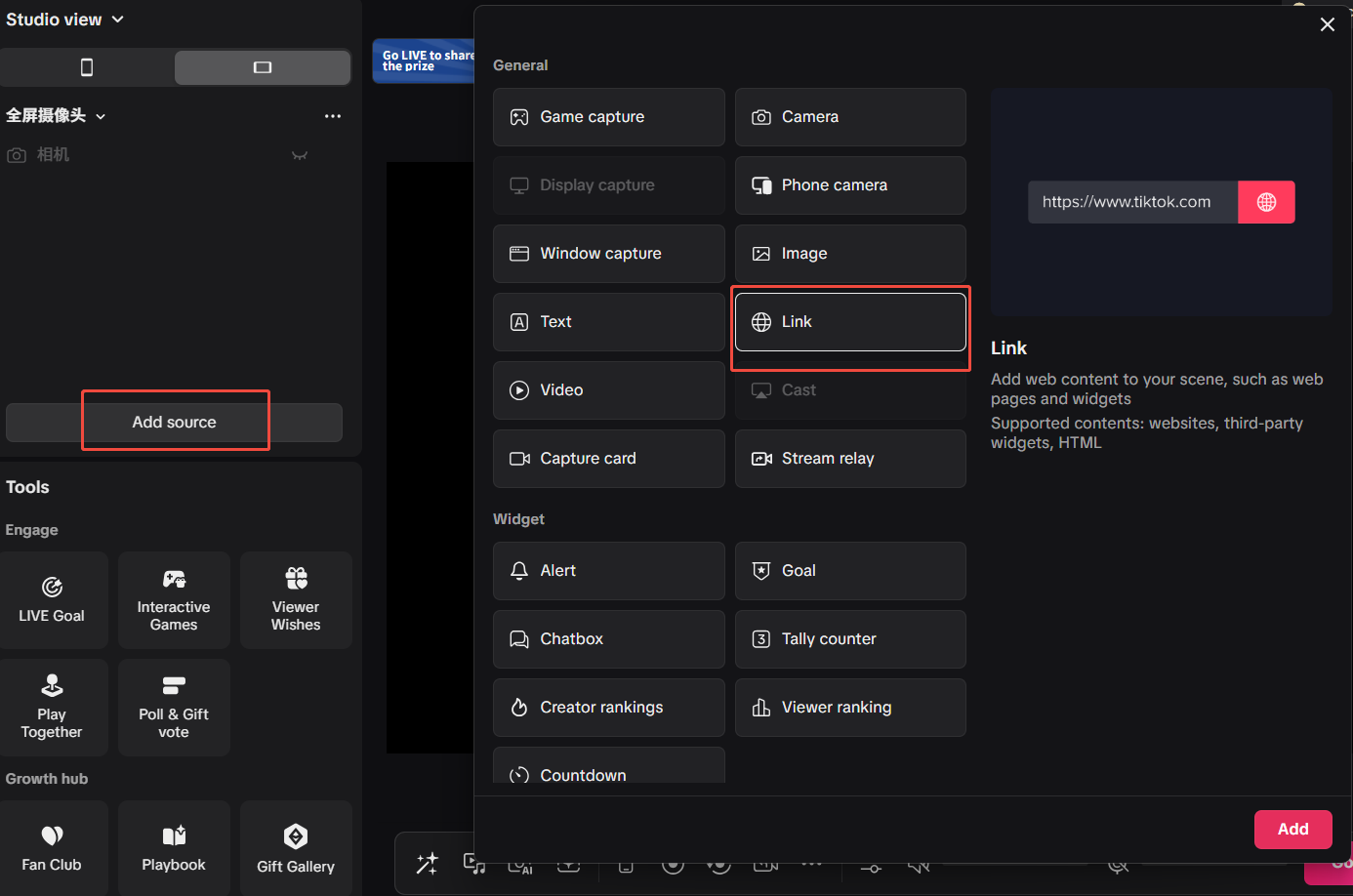
If you go live with TikTok LIVE Studio, the approach is the same — a browser layer, nearly identical to OBS:
- Open your scene / layer list in TikTok LIVE Studio.
- Add a Browser layer.
- Paste the link from Copy link into the URL field.
- Match the canvas size (e.g. 1920×1080) and keep the background transparent.
- Position the layer, go live, and send a test chat / gift to confirm it animates.
- TKStudio and TikTok LIVE Studio must run on the same PC (the link points to 127.0.0.1).
- Blank overlay? Make sure TKStudio is connected to the right room, then re-copy the link and refresh the layer.
- After regenerating a link, refresh or re-create the browser layer.
Related plugins
Browse all plugin docs or try them live in the TKStudio marketplace.