Welcome Parachute — TikTok Live Welcome overlay
Welcome Parachute turns a VIP entry into a moment: avatar and nickname parachute down from the sky, land, hold, then fade. More ceremonial than a corner toast, without going full-screen.
Prerequisite: install and run TKStudio (Windows desktop) and connect it to the TikTok LIVE room you are streaming. This article stands on its own — from configuration to OBS / TikTok LIVE Studio setup.

When to use it
The parachute announces itself — you just say the name and the room lights up. It fits rooms with a real VIP culture: top gifters, fan-club leaders, recurring guests get a full-room salute on arrival.
Less interruptive than a full-screen alert, grander than a corner toast — the sweet spot between them.
The demo video above shows Welcome Parachute in action (both EN and ZH versions), and the cover previews the layout; the plugin page's live preview is the source of truth.
Configuration
Configure everything on the plugin page in TKStudio — tune on the left, preview live on the right, then hit Generate link. The table below lists every parameter in panel order, its default, and practical gotchas.
| Parameter | Description | Default | Gotchas |
|---|---|---|---|
minUserLevel | Only show events from viewers at or above this TikTok user level. (0–100) | 0 | 0 = no filter. High values silently drop normal viewers — mainly useful for welcome plugins. |
minFansClubLevel | Only react to fan-club members at or above this level. (0–50) | 0 | Fan club level ≠ user level — check your real top fans' levels before raising this. |
dedupeSec | Same viewer triggers at most once per window. (0–600) | 60 | Stops re-entry spam; 60s is a good default. |
maxQueue | Max events waiting in the display queue. (1–20) | 5 | When full, new events are dropped. Raise it to miss fewer people, at the cost of pace. |
displaySec | How long each popup stays. (2–15) | 4 | Longer if you call out names on mic so viewers can read them. |
showAvatar | Show the viewer's avatar. | true | Avatars read faster than nicknames — keep on for popups. |
fontSizeLevel | Overall text size step (1–10). (1–10) | 5 | Judge in preview; lower it for vertical (portrait) streams so text stays in frame. |
voiceEnabled | Read events aloud with system TTS. | false | Uses your OS TTS voices — install extra language packs if missing; pick a zh-* voice for Chinese. |
voiceReadNick | Include the viewer's nickname in speech. | true | Nicknames with emoji or rare characters may sound odd. |
voiceTemplate | Custom spoken line; {nick} is replaced with the nickname. | Welcome, {nick}! | Keep the {nick} placeholder if you still want the name spoken. |
voiceVolume | TTS volume (0–100). (0–100, step 5) | 80 | 60–80 recommended so TTS never drowns your mic. |
voiceStyle | TTS voice style. | normal | Available styles depend on installed system voices. |
voiceIntervalSec | Minimum gap between two announcements. (0–10) | 2 | Raise it for busy rooms so announcements queue instead of piling up. |
voiceLang | TTS language (e.g. en-US / zh-CN). | en-US | Voices come from the OS; add a language pack first if your target language is missing. |
How to use it in OBS
This section assumes you have generated and copied the link: open TKStudio → pick Welcome Parachute → choose the room and tune parameters → Generate link → Copy link. Keep TKStudio running while you stream — the overlay link talks to the local TKStudio process.
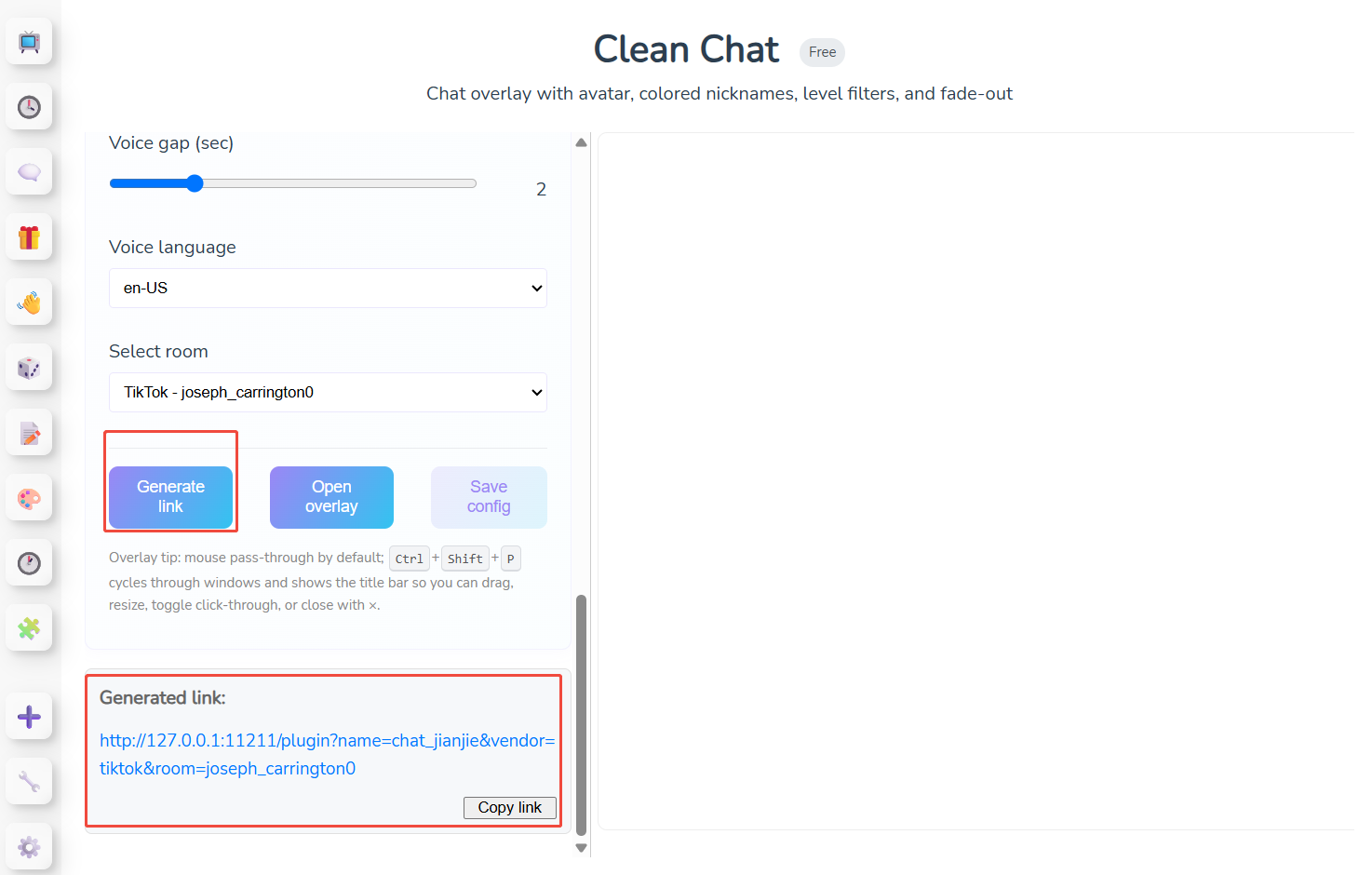
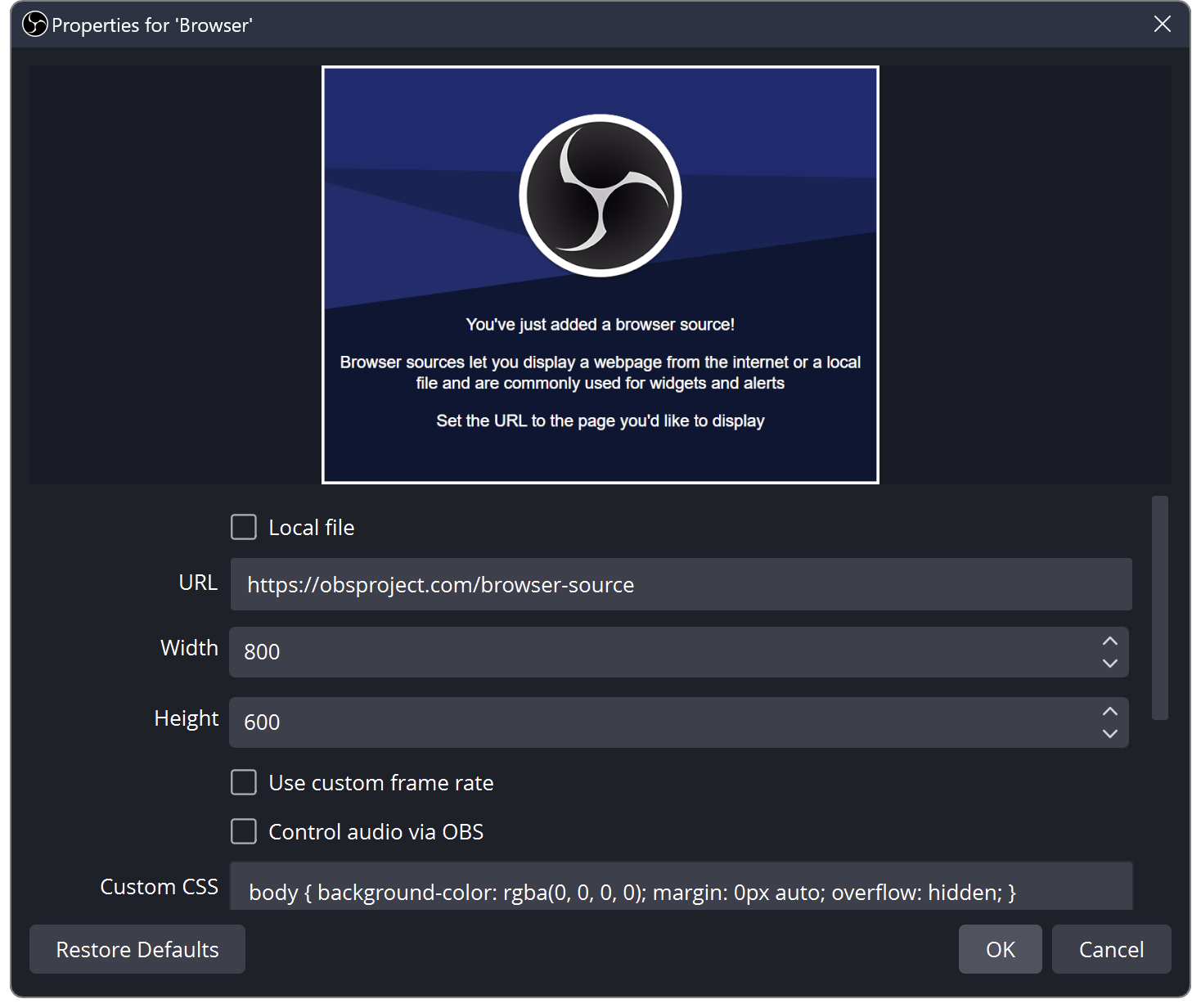
Add the link to OBS as a Browser Source:
- In the Sources dock click + → Browser.
- Paste the copied link into URL; set width / height to your canvas (usually 1920×1080).
- Leave Shutdown source when not visible unchecked so the overlay never pauses.
- Click OK, then drag / resize the source into position.
Placement: The drop spans the frame — keep upper canvas clear; landing near your usual on-camera spot feels like they land beside you.
- The page background is transparent out of the box — do not override it with custom CSS.
- After changing parameters, Generate link again and refresh the Browser Source (or update its URL).
- One plugin = one Browser Source; add more sources for more overlays.
How to use it in TikTok LIVE Studio
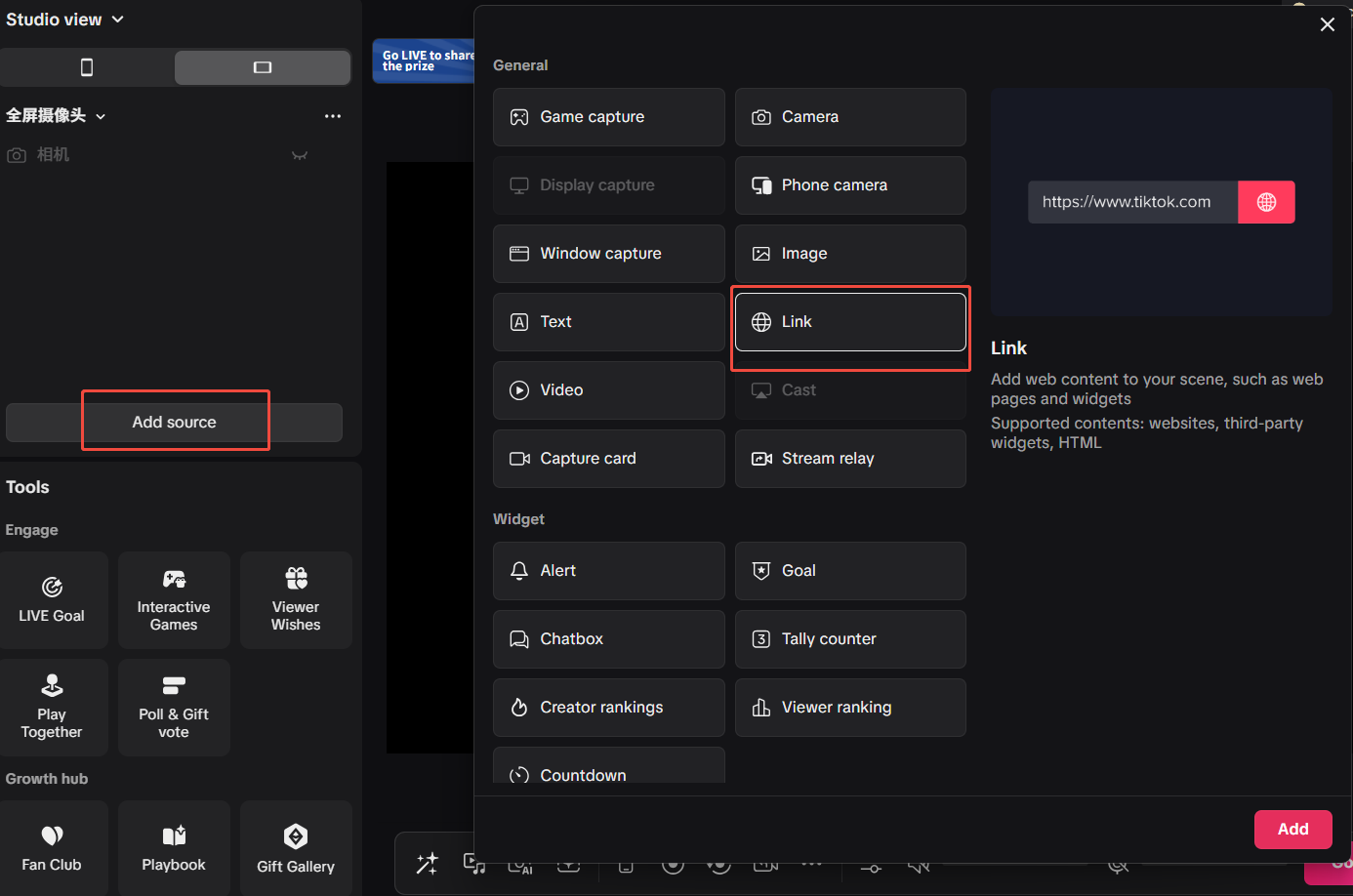
If you go live with TikTok LIVE Studio, the approach is the same — a browser layer, nearly identical to OBS:
- Open your scene / layer list in TikTok LIVE Studio.
- Add a Browser layer.
- Paste the link from Copy link into the URL field.
- Match the canvas size (e.g. 1920×1080) and keep the background transparent.
- Position the layer, go live, and send a test chat / gift to confirm it animates.
- TKStudio and TikTok LIVE Studio must run on the same PC (the link points to 127.0.0.1).
- Blank overlay? Make sure TKStudio is connected to the right room, then re-copy the link and refresh the layer.
- After regenerating a link, refresh or re-create the browser layer.
Related plugins
Browse all plugin docs or try them live in the TKStudio marketplace.